Easy Syntax Highlighter (WordPress Plugin)
Modern, lightweight syntax highlighting for WordPress.
Powered by the latest Highlight.js engine, this plugin offers a fast and accurate way to display code snippets. It supports over 20 languages, includes 80+ visual themes, and integrates seamlessly with both Gutenberg and the Classic Editor.
✨ Key Features
- ⚡ Modern Engine: Utilizes the latest Highlight.js library for high-performance syntax highlighting.
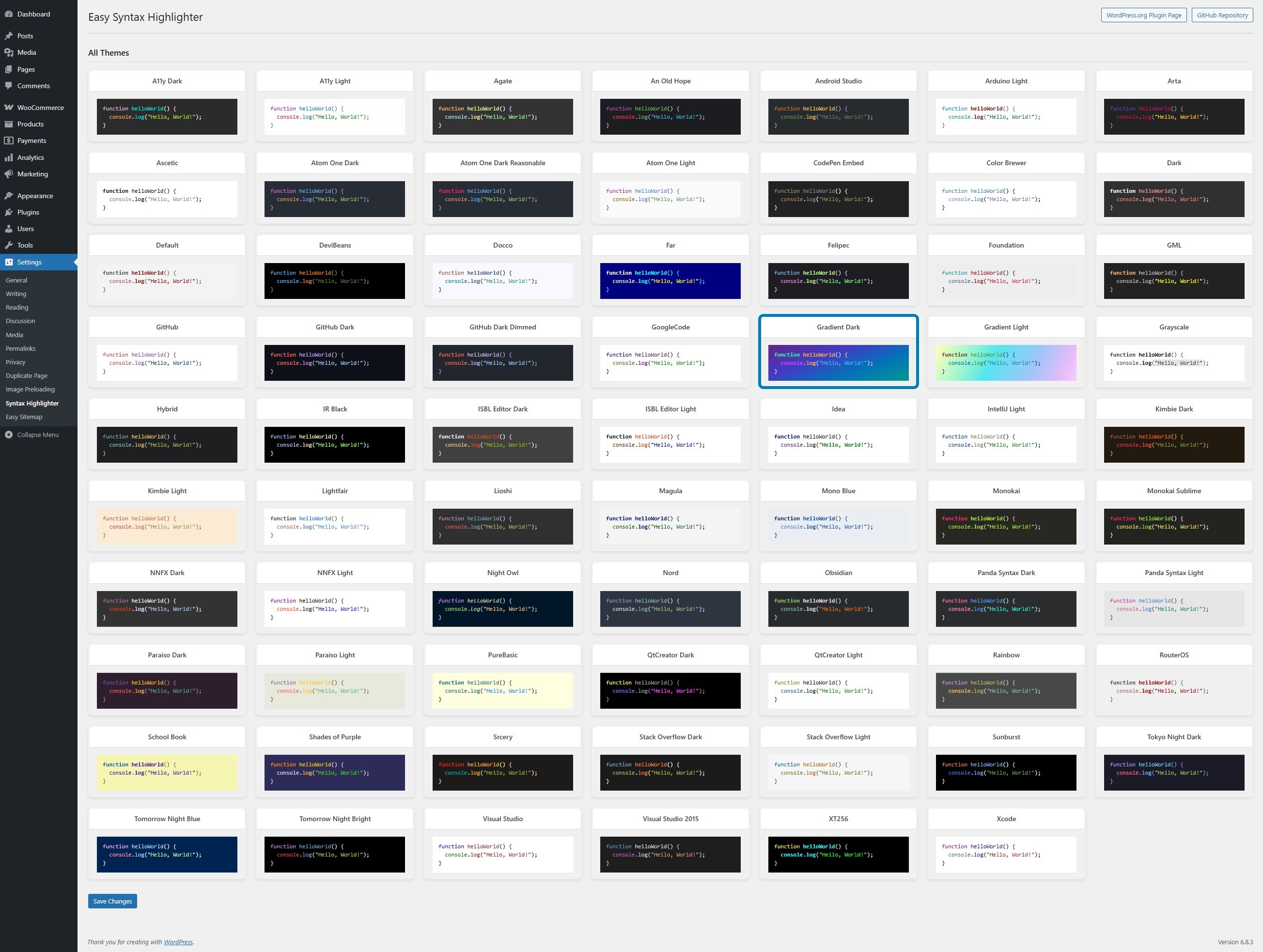
- 🎨 80+ Themes: Includes a vast library of light and dark themes (Monokai, Dracula, VS Code, GitHub, and more), all stored locally for offline compatibility.
- 👁️ Visual Interface: Features a clean, grid-based admin interface for easy theme previewing and selection.
- 📝 Editor Integration:
- Gutenberg: Works automatically with the native WordPress “Code” block.
- Classic Editor: Includes a TinyMCE button for easy code insertion.
- 📋 Smart Copy: Users can double-click any code block to instantly copy contents to the clipboard (with localized feedback).
- 🚀 Performance First: Assets use smart loading—scripts and styles only load on pages where code blocks are actually present.
- 🔒 Secure & Accessible: Built with proper input sanitization, output escaping, and ARIA labels for accessibility.
📋 Requirements
| Component | Version |
|---|---|
| WordPress | 5.0+ |
| PHP | 7.0+ |
| MySQL | 5.6+ |
🚀 Installation
- Download the plugin files.
- Upload the
easy-syntax-highlighterfolder to your server via FTP:/wp-content/plugins/. - Log in to WordPress and navigate to Plugins.
- Find Easy Syntax Highlighter and click Activate.
- Configure your preferences at Settings → Syntax Highlighter.
⚙️ Configuration
Navigate to Settings → Syntax Highlighter to customize the plugin.
1. Theme Selection
Choose from over 80 distinct color themes. The settings page provides a visual grid layout with live previews, allowing you to see exactly how your code will look before saving.
2. General Settings
- Language Support: Enable automatic language detection or force specific languages.
- Copy Functionality: Toggle the “Double-click to copy” feature (Enabled by default).
- Performance: Configure asset loading and caching behaviors to keep your site fast.
📖 How to Use
In the Gutenberg Block Editor (Recommended)
This plugin is designed to enhance the native WordPress experience.
- Click the
+button and add a standard Code block. - Paste your code snippet into the block.
- Publish! The plugin will automatically detect the language and highlight it on the frontend.
💡 Advanced: Forcing a Language
If automatic detection isn’t accurate for a specific snippet, you can manually define the language:
- Select your Code block.
- Click the three-dot menu (⋮) in the toolbar and select Edit as HTML.
- Add the language class to the code tag:
<code class="language-python">. - Select Edit visually to return to the standard view.
In the Classic Editor
- Look for the Code Icon (TinyMCE button) in the editor toolbar.
- Click the button to open the insertion modal.
- Paste your code, select your desired language from the dropdown, and click Insert.
🐛 Troubleshooting
If you encounter issues, please check the following solutions:
| Issue | Potential Solution |
|---|---|
| Code Not Highlighting | Ensure you are using the correct Gutenberg Code Block. Check that the snippet is wrapped in <code> tags. |
| Theme Not Changing | Clear your browser cache (Ctrl+F5) and any WordPress caching plugins (e.g., WP Rocket, Autoptimize). |
| Copy Not Working | Ensure JavaScript is enabled in the browser. Double-check that you are double-clicking directly on the code text. |
| Styles Missing | Check the browser console (F12) for 404 errors on .css files. Re-save your settings to regenerate paths. |
📄 License & Contribution
License
Licensed under the GNU General Public License v2.0 or later.
Contributing
We welcome contributions from the community!
- Fork the repository.
- Create a feature branch.
- Submit a Pull Request with a clear description of changes.
Made with ❤️ for the WordPress community