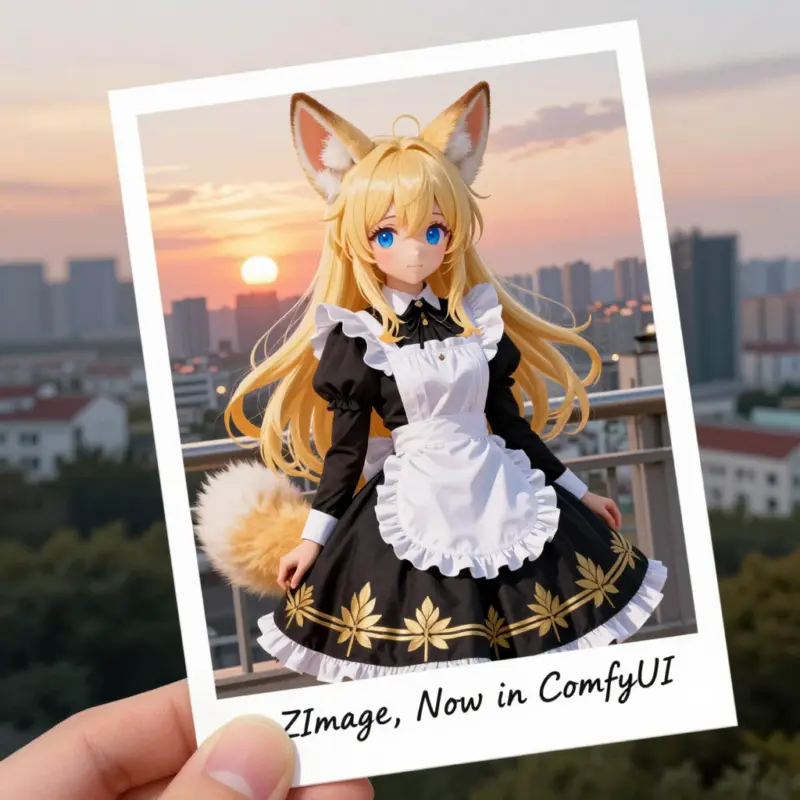
If you’ve been running Flux.1 locally, you know the pain: it produces stunning images, but unless you have an H100 GPU in your basement, it can feel like watching paint dry.
Enter Z-Image-Turbo.
Developed by Tongyi-MAI (the AI research arm of Alibaba), this new model is turning heads in the open-source community. It’s a 6-billion parameter model designed specifically for speed, requiring only 8 sampling steps to generate high-quality, photorealistic images.
In this guide, I’ll walk you through exactly what Z-Image-Turbo is, how it compares to the giants like SDXL and Flux, and most importantly, how to get it running in ComfyUI today.
🚀 What is Z-Image-Turbo?
Z-Image-Turbo is a “distilled” diffusion model. In plain English, that means it’s a compressed, optimized version of a larger model (Z-Image-Base), engineered to run incredibly fast without sacrificing too much quality.
Key Specs:
- Architecture: Scalable Single-Stream DiT (Diffusion Transformer). This is a modern architecture similar to Flux but optimized for efficiency.
- Speed: Generates images in 8 steps (sub-second generation on enterprise GPUs; seconds on consumer cards).
- Bilingual: It understands prompts in both English and Chinese.
- VRAM Friendly: It runs comfortably on 16GB VRAM cards (like the RTX 4080/4090) and can be squeezed into lower VRAM setups with some quantization.
🛠️ How to Install Z-Image-Turbo in ComfyUI
Unlike standard Stable Diffusion checkpoints where everything is in one file, Z-Image-Turbo requires a modular setup. You need three specific components.
Step 1: Download the Files
Head over to the Hugging Face Repository and download the following.
- The Diffusion Model:
- File:
z_image_turbo_bf16.safetensors - Where to put it:
ComfyUI/models/diffusion_models/ - Note: If you are low on VRAM, look for GGUF versions if available in the community, though
bf16is the standard.
- File:
- The Text Encoder:
- File:
qwen_3_4b.safetensors(This is a powerful LLM-based text encoder). - Where to put it:
ComfyUI/models/text_encoders/
- File:
- The VAE (Visual AutoEncoder):
- File:
ae.safetensors(Or you can often use the Flux VAE if you already have it). - Where to put it:
ComfyUI/models/vae/
- File:
Step 2: Update ComfyUI
This is a new architecture. If your ComfyUI is outdated, it won’t recognize the nodes.
- Go to your ComfyUI manager or terminal.
- Run
git pullor click “Update All” in the Manager.
📋 The Workflow (Drag & Drop)
The easiest way to get started is using the official workflow example provided by ComfyAnonymous.
How to Load it:
- Go to the ComfyUI Examples Page for Z-Image.
- Save the image on that page to your computer.
- Open ComfyUI.
- Drag and drop that image directly onto your canvas.
Workflow Breakdown
If you are building it manually, here is the logic structure you need to replicate:
- Load Checkpoint (Triple Loader):
- Unlike SDXL, you don’t use a single “Load Checkpoint” node. You likely need separate loaders for the UNet/Diffusion Model, CLIP/Text Encoder, and VAE.
- Tip: Look for the
UNETLoader,DualCLIPLoader(or standardCLIPLoader), andVAELoadernodes.
- Sampling:
- Steps: Set this to 8. (Going higher doesn’t help much; going lower ruins the image).
- CFG: Keep it low (often between 1.0 and 2.0 for distilled/turbo models).
- Sampler Name:
euler_ancestralordpmpp_2m_sdeusually work best.
- Prompting:
- Connect your
qwen_3_4btext encoder to the CLIP Text Encode node. - Pro Tip: You can type prompts in Chinese or English!
- Connect your
⚖️ Comparison: Z-Image vs. The Rest
| Feature | Z-Image-Turbo | Flux.1 Dev | SDXL Turbo |
|---|---|---|---|
| Speed | ⚡ Fast (8 Steps) | 🐢 Slow (20-50 Steps) | ⚡ Fast (1-4 Steps) |
| Realism | ⭐⭐⭐⭐ (Excellent) | ⭐⭐⭐⭐⭐ (Best) | ⭐⭐⭐ (Good) |
| Prompt Following | High (thanks to Qwen) | High | Medium |
| Text Rendering | Good (Bilingual) | Excellent | Poor |
| Hardware | 16GB VRAM ideal | 24GB+ ideal | 8GB+ workable |
The Verdict: Z-Image-Turbo sits in the “Goldilocks” zone. It is significantly faster than Flux while offering better prompt adherence and text rendering than SDXL Turbo.
💡 TipTinker Pro Tips
- Don’t Over-Bake: Do not set your steps to 20 or 30 thinking it will improve quality. Z-Image-Turbo is a distilled model; extra steps often lead to “burnt” or artifact-heavy images. Stick to 8-10 steps.
- The Chinese Hack: If you are struggling to get a specific cultural aesthetic (e.g., “Traditional Hanfu clothing”), try translating your prompt to Chinese. The Qwen text encoder has deep native understanding of Chinese concepts that English prompts might miss.
- GGUF for Efficiency: If you have an 8GB or 12GB card, search for “Z-Image-Turbo GGUF”. The community often quantizes these models within days of release, allowing them to run on much weaker hardware with minimal quality loss.
Conclusion
Z-Image-Turbo is a breath of fresh air for those of us who want high-quality AI art without the agonizing wait times of Flux. While it might not completely dethrone Flux for ultimate high-res composition, it is the perfect tool for rapid prototyping and high-volume generation.
Try the workflow today and let me know in the comments: Is 8 steps enough for your art?