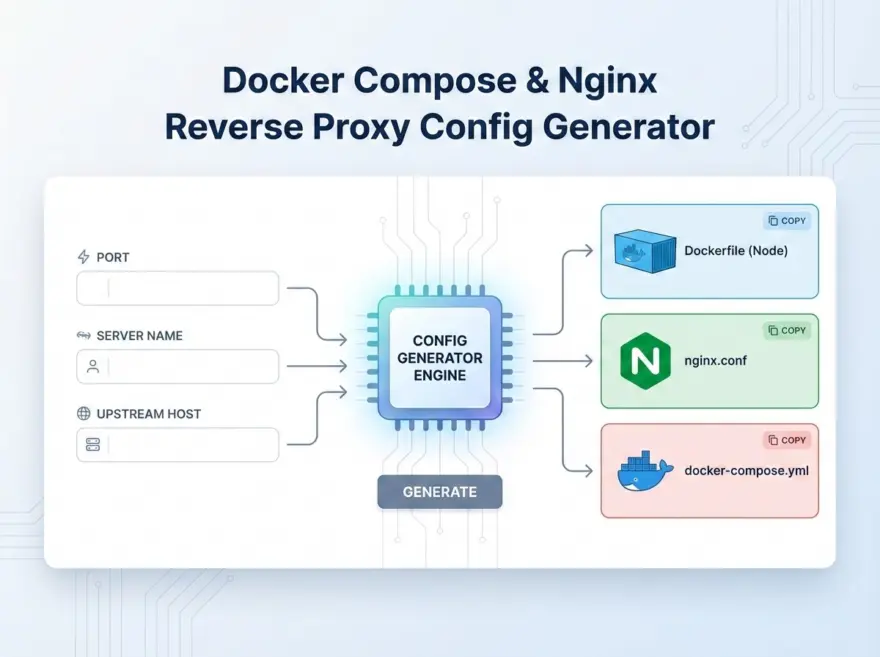
Docker Compose & Nginx Reverse Proxy Config Generator — Production-Ready Starter Templates
The Docker Compose & Nginx Reverse Proxy Config Generator builds opinionated, production-friendly snippets for Node.js apps: a minimal Dockerfile, an Nginx reverse-proxy config, or a docker-compose.yml that wires Node and Nginx together. You provide the port, server name (for Nginx), and optional environment variables, and the tool outputs copy‑pasteable config you can use as a starting point.
Why use this tool?
- Faster setup: Skip searching docs or copying old gists; generate Docker, Nginx, or Compose in one place.
- Production‑oriented defaults: Uses Node 20 Alpine, a cache‑friendly Docker build, non‑root user, and proxy headers that preserve the real client IP.
- Docker‑aware Nginx:
proxy_passtargets a configurable upstream service name instead of always pointing to127.0.0.1, making it safer for multi‑container deployments. - Easy to customize: Paste the result into your repo and adjust paths, commands, and environment variables as needed.
Key features
- Port input: Choose the application port (defaults to
3000). - Output type selector:
- Dockerfile (Node):
FROM node:20-alpine,WORKDIR /app,COPY package*.json,RUN npm install,COPY . .,ENV NODE_ENV=production,EXPOSE,USER node, and aCMDthat runs your app. - Nginx proxy config: Generates a
serverblock that listens on port 80 and proxies traffic tohttp://<upstream>:<port>, with WebSocket headers and real‑IP forwarding. - docker-compose.yml (Node + Nginx): Defines an
appservice built from your Dockerfile and annginxservice using the generated config file.
- Dockerfile (Node):
- Server name: Set the
server_nameused by Nginx (for exampleexample.com). - Upstream host/service: Configure the upstream hostname or Docker service name (default
app) forproxy_pass. - Copy button: One‑click copy of the generated snippet into your clipboard.
How it works
The tool reads your selected output type (Docker, Nginx, or Compose) plus the port, server name, and upstream host. It then assembles a template line by line in the browser and writes the final string into the output textarea—no backend, file I/O, or external services involved. When you click Copy, the text is written to your clipboard so you can paste it directly into your project.
Example workflows
- Generate a Dockerfile for a Node app:
- Set Port to the internal port your app listens on (for example
3000). - Choose Dockerfile (Node).
- Click Copy and save the contents as
Dockerfilein your project root.
- Set Port to the internal port your app listens on (for example
- Create an Nginx reverse proxy for a Dockerized app:
- Set Port to your app container port.
- Set Server name to your domain (for example
myapp.com). - Set Upstream host/service to your app container or service name (for example
app). - Choose Nginx proxy config, copy the output, and save it as
nginx.confon your server or in your image.
- Wire Node and Nginx together with docker-compose:
- Use the Dockerfile (Node) output as your
Dockerfile. - Generate an Nginx proxy config and save it as
nginx.conf. - Choose docker-compose.yml (Node + Nginx) and copy the output to
docker-compose.yml. - Run
docker compose up -dto start both services.
- Use the Dockerfile (Node) output as your
Try the Docker Compose & Nginx Reverse Proxy Config Generator
Open the tool, pick your port and output type, and copy the generated snippet into your project. From there you can tweak commands, environment variables, and advanced Nginx options while keeping a solid, production‑oriented baseline.
简体中文
Docker Compose Nginx 反向代理配置生成器
为多服务应用生成 Docker Compose 与 Nginx 反向代理配置模板。
한국어
Docker Compose Nginx 리버스 프록시 생성기
여러 서비스를 위한 Docker Compose 구성과 Nginx 리버스 프록시 설정 템플릿을 생성합니다.
日本語
Docker Compose Nginx リバースプロキシ生成ツール
複数サービス向けの Docker Compose と Nginx リバースプロキシ設定テンプレートを生成します。